Canceling Your Subscription


Reference Number: KB-03245
Last Modified: March 19, 2026

QUESTION

How do I cancel my software subscription?


ANSWER

You can cancel your subscription by accessing your account. 

Note: If you're using a legacy license or legacy rental, the available cancellation options may vary. Please contact our Customer Service or Sales team to discuss these options further. 

Canceling a subscription

  1. Click on My Account, sign in to your account, then click on Digital Locker: Downloads, Product Keys & License Management.


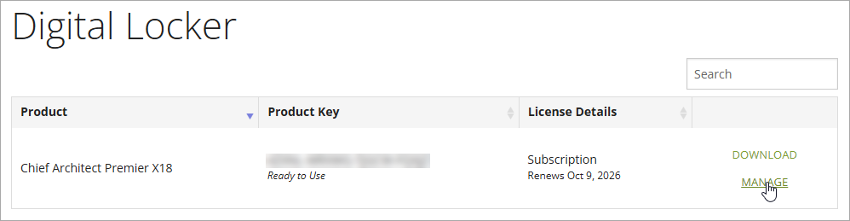
  2. Within your Digital Locker, click on the Manage link associated with your license.

    If you don’t see this option, the subscription has likely been canceled and has expired. If you believe that this is not the case or require further assistance, please contact our Customer Service or Sales team.

    Click on the Manage link under the License Details column


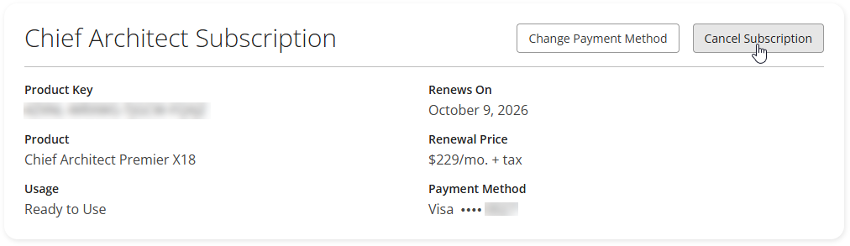
  3. Click Cancel Subscription.

    If you don’t see this option, the subscription has likely already been canceled, or the option does not apply to the license type. 

    Click the Cancel Subscription button.


  4. Click Cancel Subscription once more or click Keep Subscription to keep your subscription active.

    Note: If you choose to cancel, you will have access to your subscription through the expiration date (end of the billing cycle).
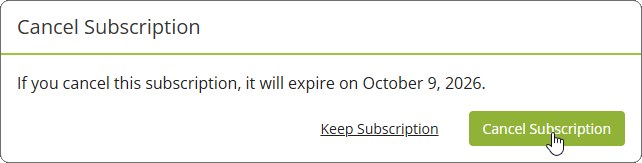
    Confirm the cancelation by clicking the Cancel Subscription button.


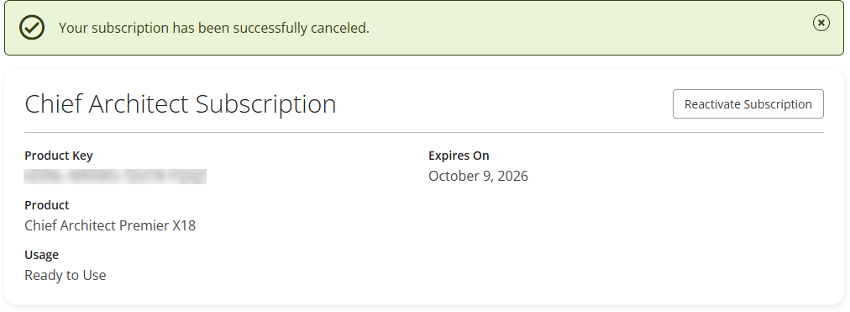
    Once canceled, a banner message will display stating: "Your subscription has been successfully canceled." 

    Banner stating the subscription has been canceled.

    You can reactivate your subscription up until the expiration date by clicking on the Reactivate Subscription button. To learn more, see the Related Articles section.