QUESTION
I canceled my software subscription and would now like to restart or reactivate it. How can I do this?
ANSWER
You can reactivate a canceled or expired software subscription through your online account.
Reactivating a canceled or expired subscription
- Click on My Account, sign in to your account, then click on Digital Locker.
- Within your Digital Locker, click on the Manage link associated with the license you would like to reactivate.
If your canceled or expired license is not listed, first ensure that you're signed in to the correct account. If you have verified that the account is correct, please contact our Customer Service or Sales team for further assistance.
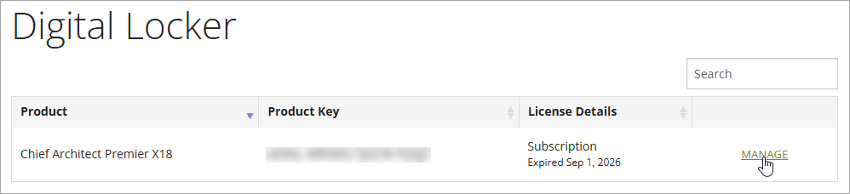
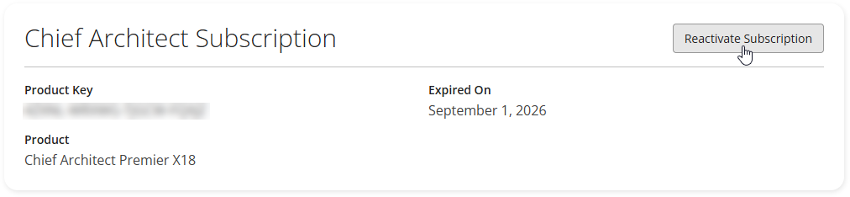
- Click Reactivate Subscription.
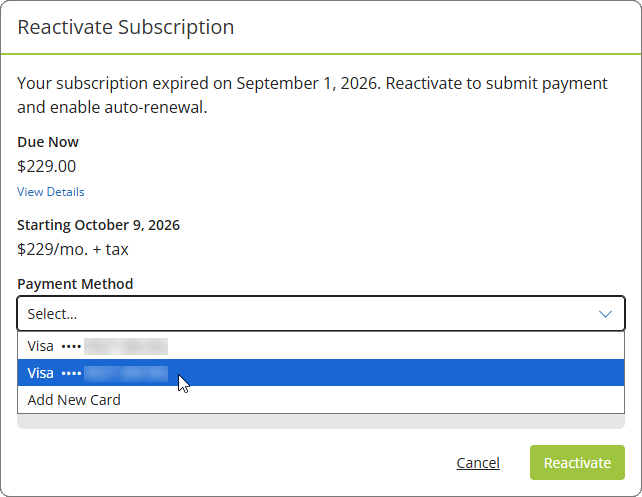
- Note the details that are shown, select your desired Payment Method, then click Reactivate or Continue.
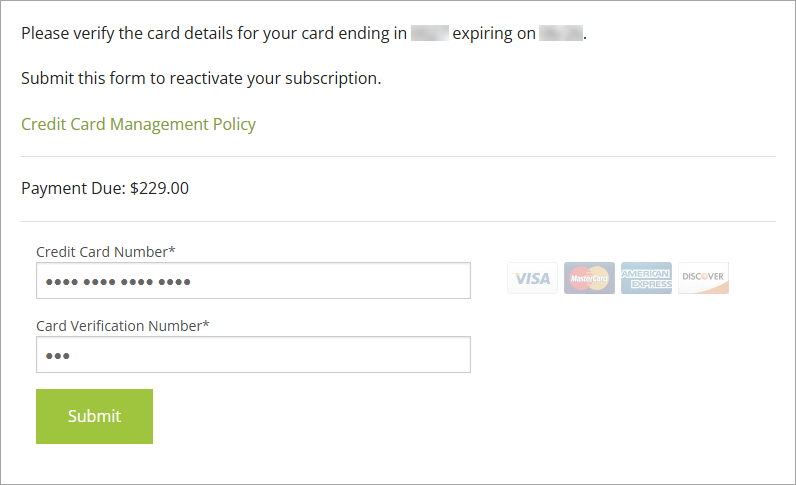
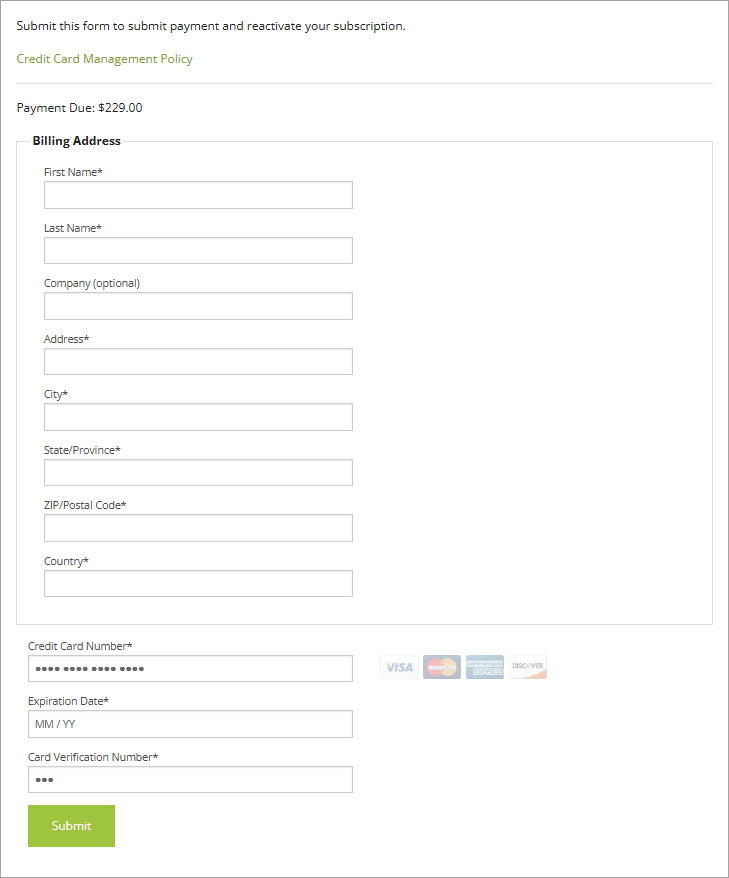
- If additional details are required to continue, you will be prompted with one of the following pages:
- If a card on file was selected, you may be asked to verify the card details; reenter the Credit Card Number and Card Verification Number (CVV), then click Submit.
- If Add New Card was selected, enter your Billing Address details, Credit Card Number, Expiration Date, and Card Verification Number (CVV), then click Submit.
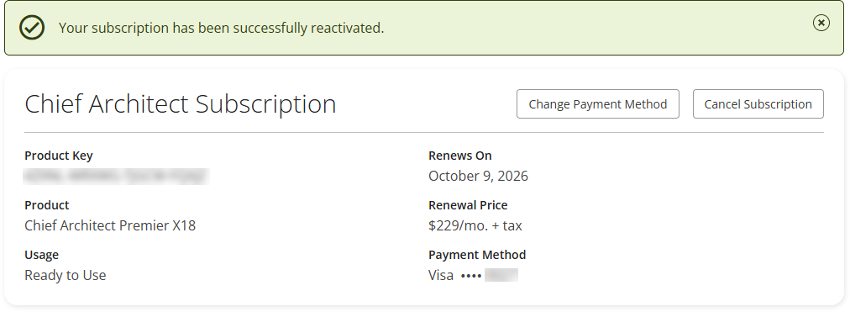
Once reactivated, a banner message will display stating: "Your subscription has been successfully reactivated."