My door labels are too small when I print. How can I increase the size of the text and change the font to suit my needs?
In Chief Architect, a Text Style is a saved set of attributes that can be assigned to any object that displays text, such as text objects, callouts, markers, dimensions, schedules, CAD objects, and labels.
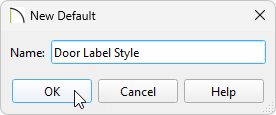
In this article, we will locate the Text Style that is assigned to our door labels, and create a new, custom Text Style to be used. Although this example focuses specifically on door labels, the same steps can be applied to other object labels in your designs, such as window or cabinet labels.
 .
.Note: You can also use the Object Layer Properties edit tool, or the Active Layer Display Options side window, to view the layer properties associated with a selected object.
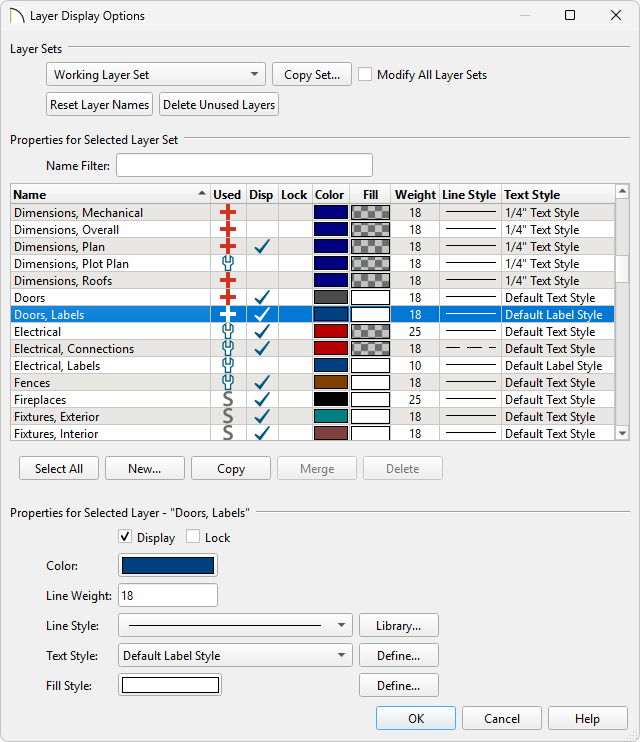
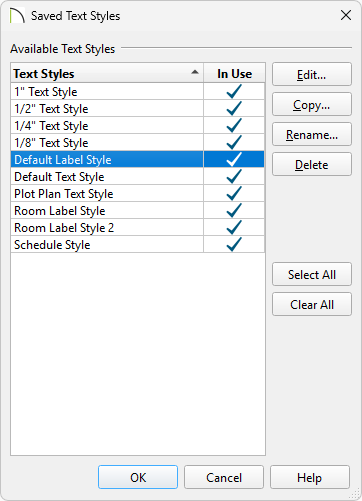
You can also access the Saved Text Styles dialog from the Default Settings. To do so, navigate to Edit> Default Settings, expand Text, Callouts, and Markers, select the Text Styles category, then click Edit.
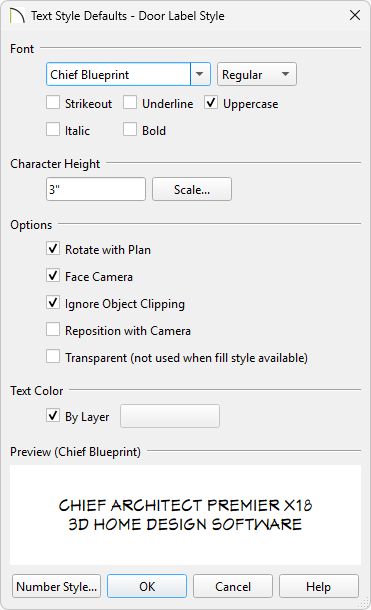
Several additional label properties, such as justification, plan view position, and the layer which the label generates on, can all be adjusted on the Label panel of the objects Specification dialog. For example, open a door up to specification and select the Label panel to adjust the properties mentioned.
