I would like to create text with arrows that point to objects in my drawing. How can I do this?
Text arrows, which are simply CAD lines/polylines with arrows drawn on the “Text” layer, can be used to connect text objects to details of interest in your drawing.
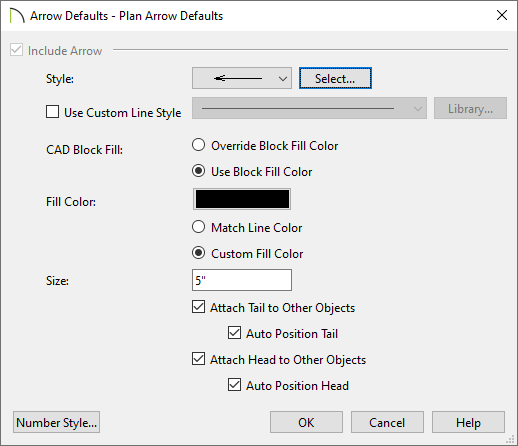
Start by setting up the Arrow Defaults to your liking, then use the Leader Line tool or the Text Line with Arrow tool to add arrows to your designs. Additionally, you can use the Add an Arrow dialog setting or the Add Text Line with Arrow edit handle.
Note: As with other objects in Chief Architect, once a line/polyline with an arrow or a text object is created, it can be moved, resized, and otherwise edited at any time using its edit handles, Edit toolbar buttons, and/or specification dialog.
 and expand Text, Callouts and Markers.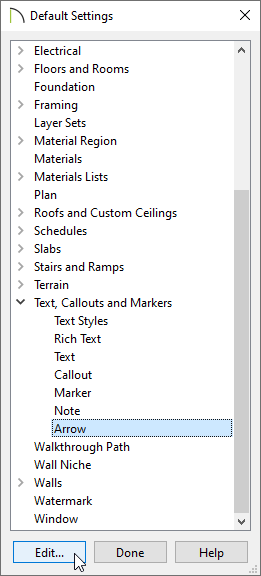
Use the Leader Line tool to place a text object with a line and arrow attached.
 from the menu.
Note: The Leader Line tool creates two line segments by default. This can be changed on the Text panel of the Preferences dialog.
The Text Line with Arrow tool can be used to create lines with arrows. But, unlike the Leader Line tool, it cannot be used to create new text objects. The Text Line with Arrow tool behaves like the Line With Arrow tool, but with one exception: the Text Line with Arrow tool creates lines on the default Text layer, not the Current CAD Layer.
 from the menu. tool is active.
A line with an arrow can be added to a text object automatically using the Add an Arrow dialog setting.
 tool, click on the text box you'd like to add an arrow to, then click the Open Object
  edit button. tool.
*Applies to X14 and newer program versions
Rich text, text, and callout objects have a diamond-shaped edit handle that you can click and drag in any direction to draw a Text Line with Arrow that is snapped to the selected object at its tail end.
tool, click on the text box or callout you'd like to add an arrow to. cursor symbol appears.
To learn more about arrows, such as how they work with snaps, please refer to your program's documentation.
