What are Layer Sets and how are they used in Chief Architect?
Layer Sets can be thought of as a stack of transparency sheets gathered together for a particular purpose that can be quickly applied to your drawing. Rather than turning on and off layers one-by-one, Layer Sets allow you to quickly switch from one collection of layer attributes to another.
Additionally, Layer Sets are connected to Saved Plan Views, which allow you to change a variety of options in the program all with a single click. If you're editing your electrical plan, for example, your job will be easier if unrelated objects such as roof planes and ceiling framing are not in the way. You could access your Layer Display Options and browse the dozens of layers in the list, turning off each unneeded layer for the view you're in; or, you could simply switch to the Electrical Saved Plan View, which could be associated with an Electrical Layer Set that has all of your preferred display settings already setup to your liking.

Chief Architect template plan files include a number of Saved Plan Views and Layer Sets created for a variety of purposes, including:
Understanding how Layers and Saved Plan Views function, and how they are associated with Layer Sets, is fundamental in establishing a productive workflow. Please view our Related Articles section to learn more about these topics.
You can learn more about Layer Sets in the following sections:
 .
.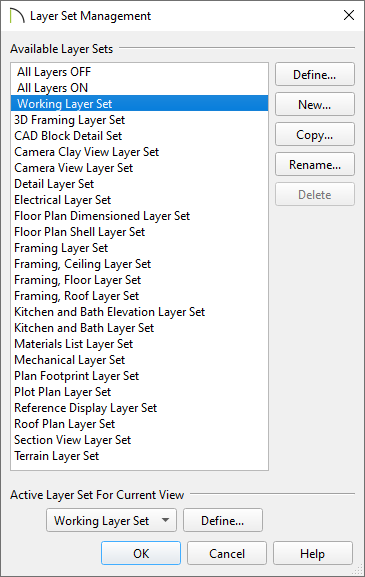
For more information on layers and their properties, please see the "Understanding Layers" resource in the Related Articles section below.
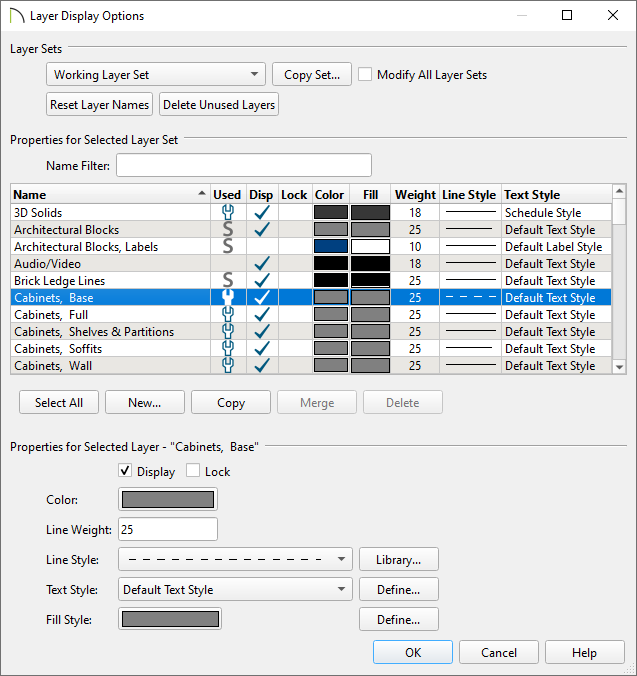
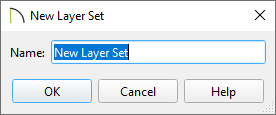
Don't delete Layer Sets that are being referenced or used by a layout file.
Also, it's important to be aware that any changes made to a Layer Set in one view will affect all other views that use the same Layer Set.
Layer Sets should be linked directly to a Saved Plan View unless the Layer Set will be used for 3D Camera views, Cross Section/Elevation views, CAD Details, Wall Details, Truss Details, or in unison with the Reference Display. For more information on linking Layer Sets to other types of views, please see the following section.
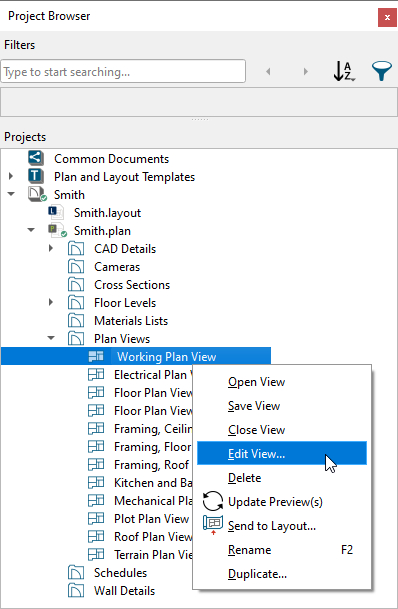
 , or right-click on the desired plan view in the Project Browser
  , then choose Edit View.
New Saved Plan Views can be created by navigating to Tools> Active View> Save Active View As, or by right-clicking on the Plan Views folder in the Project Browser and selecting "New Saved Plan View."
On a Mac, hold down the Control key while clicking to initiate a right-click command. More information about right-click commands on Apple input devices can be found in the following Apple resource: Right-click on Mac.
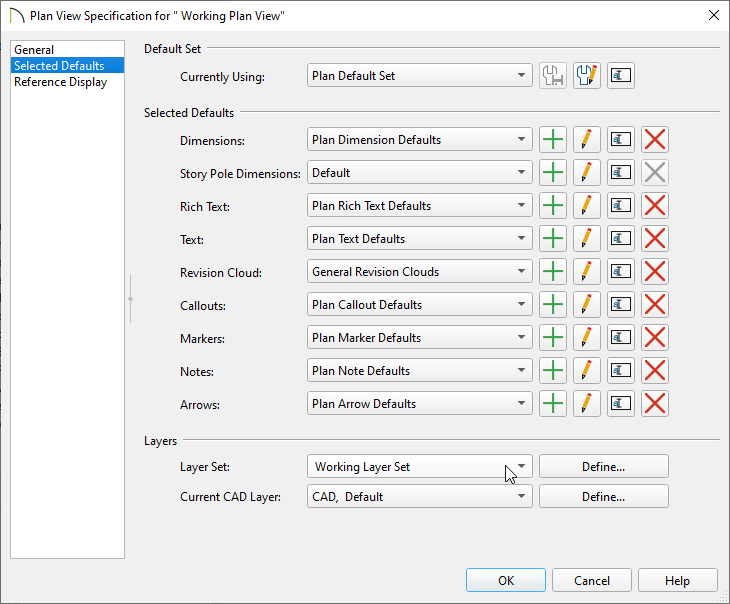
When a view other than a Saved Plan View is created, you may notice that it is also linked to a Layer Set. For example, when a Cross Section/Elevation view is created, the Section View Layer Set is used for that view by default; when a Framing Overview is created, the 3D Framing Layer Set is used by default. These can be managed and setup to your liking by accessing the Default Settings.
 , click on Layer Sets, then click Edit.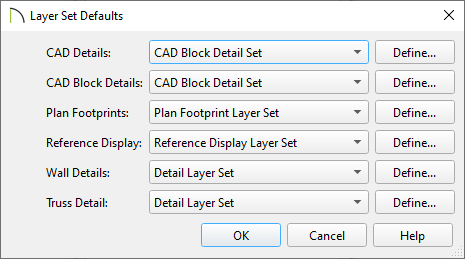
We don't recommend using the same Layer Set between a Saved Plan View and a different type of view. For example, don't link the "Working Layer Set," which is connected to the "Working Plan View," to any other type of view listed in this section.
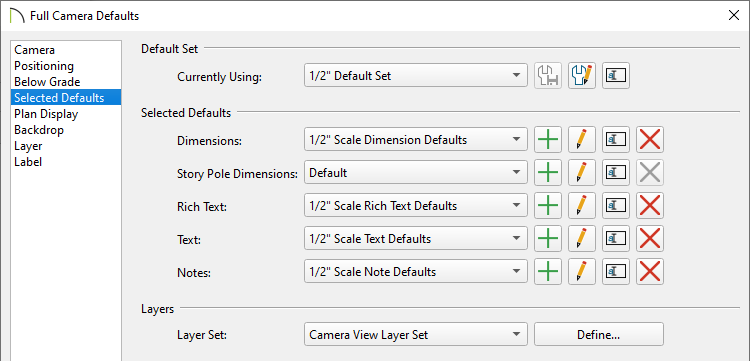
Saved Plan Views are linked to Default Sets, Layer Sets, and a variety of other settings in any given plan. With this mind, Chief Architect makes it easy to switch between all of these various settings simultaneously with a single click.
side window.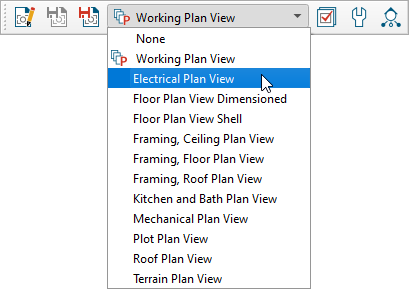

Note: If changing the plan view does not also change the active Layer Set, the plan view may not be setup to change, or it's not linked correctly to the view. Please refer to the first section in this article or view the Related Articles section to learn more.
The Active Layer Display Options is a side window that is typically docked beside the Project Browser and Library Browser. This side window allows you to see and make layer-related changes on the fly for the view that's active. The Layer Set can also be switched here if it's displayed.
 to turn on the display of this side window.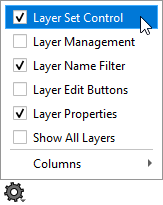
If you use the Active Layer Display Options to switch the Layer Set while a Saved Plan View is active, you should be in the "Working Plan View" or you should have the intention of switching back to the Layer Set you want to be linked with the currently active plan view.
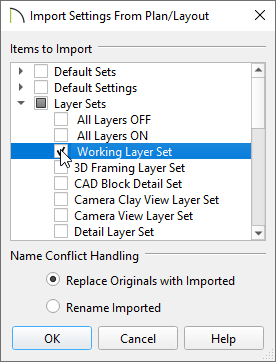
If have created or customized your Layer Sets, you can transfer them to other plan files.
 , click Export, then proceed with exporting the .layers file.
  or File> Import> Legacy Settings Import> Import Layer Sets
  . instead.
 Note: If you're importing Layer Sets that have the same name as existing Layer Sets already present in the file, and you choose the Rename Imported option, the new, imported Layer Sets will have a number appended onto the name.
In most cases, you will want changes that you make to a given Layer Set to affect only that individual set. Occasionally, though, you may find it helpful to apply a particular change to all Layer Sets in a plan.
 from the menu.