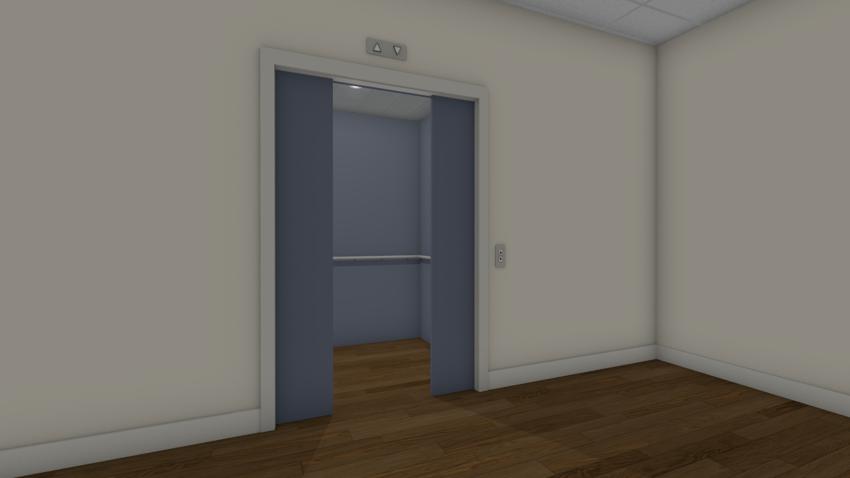
I need to incorporate an elevator into my design. How do I create a space for an elevator and design the elevator itself?
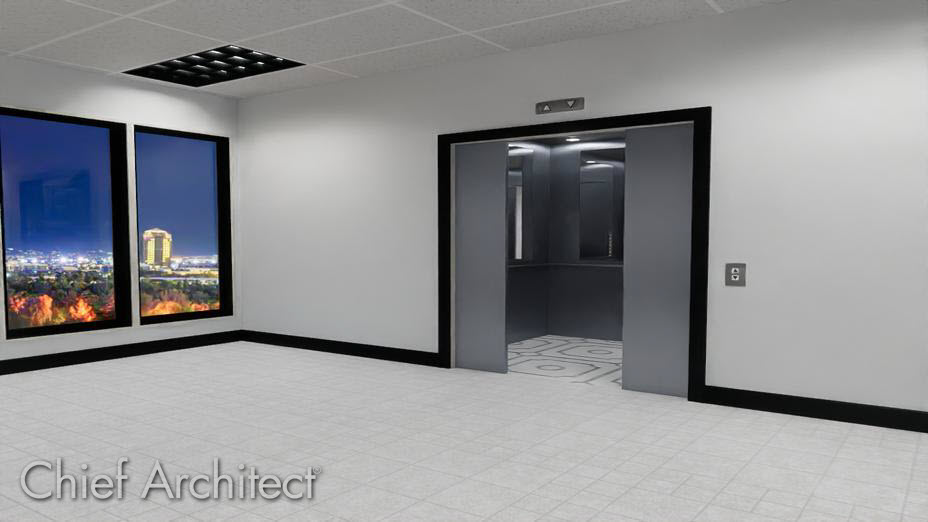
An elevator can be created by establishing an elevator room, creating a shaft for the elevator, and then adding elevator-specific objects to the design.
For purposes of this example, we will be integrating an elevator into a 2 story structure and utilizing components located in the Commercial No. 12 Elevator / Escalator Bonus Catalog.
Note: To learn more about obtaining additional library content, please see the Related Articles section below.
 and click and drag to create your elevator room.
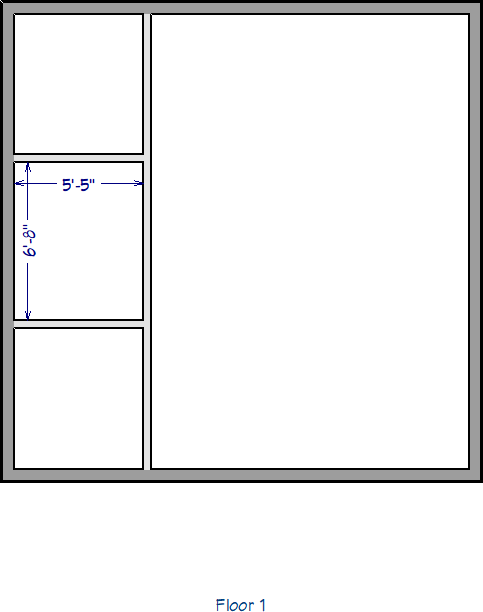
 edit tool to create room dimensions. Use these dimensions to resize your elevator room to your desired size.
If you're using larger pocket doors, like we will be using in the Detailing the Elevator section, you will also want to create walls for the pocket doors to recess into.
For information on moving walls using dimensions, please see the Related Articles.
 tool, select the newly created room and click on the Open Object
  edit tool.
Do not adjust the Ceiling Elevation to match the size of the elevator shaft. We will instead create the elevator shaft by utilizing rooms that are defined as "Open Below".
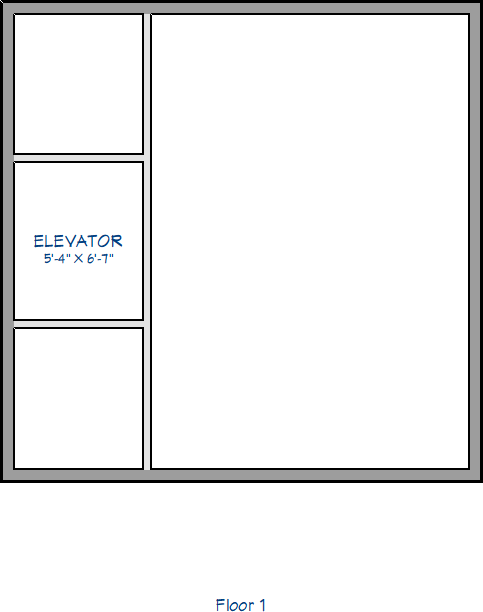 tool selected, hold down the Shift key on your keyboard, group select the walls used for your elevator, then select Edit> Copy
  from the menu.
Note: Holding the Shift key on your keyboard while selecting items allows items to be group selected. To learn more, please see the Related Articles section below.
 to Floor 2, then navigate to Edit> Paste> Paste Hold Position
  to paste your elevator walls in the exact X and Y location as Floor 1. tool, select the newly created room and click the the Open Object edit tool.
If you would like to see your elevator in 3D on Floor 2, or any other floor, you will instead want to leave the room as Unspecified so a floor platform will generate for the elevator.
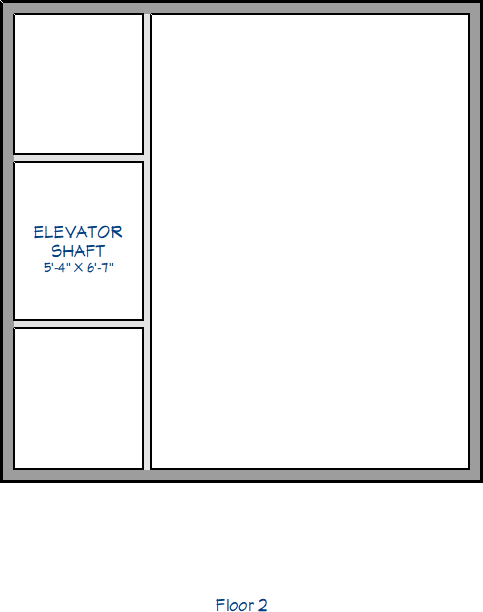
Now that the elevator room and shaft are created, we are ready to detail the elevator room, such as adding doors, buttons, and changing materials.
 , then click to place a pocket door along the wall that leads to the elevator shaft. tool, then click on the Open Object edit tool.
 edit tool to center your door on your elevator room.
 and click and drag inside of your elevator to draw the soffit. This will act as the ceiling for the elevator and can be customized to your liking.
  to open your Library Browser side window, then navigate to Bonus Catalogs> Commercial No.12 Elevator / Escalator> Elevator:
 , then click to place a light into your elevator, which will integrate into the soffit placed in Step 5.
 This will place a standard recessed can light, but you can find additional styles in the Library Browser by going to Core Catalogs> Architectural> Lighting.

 and clicking and dragging towards your elevator.
 and in the Select Material dialog that displays:
 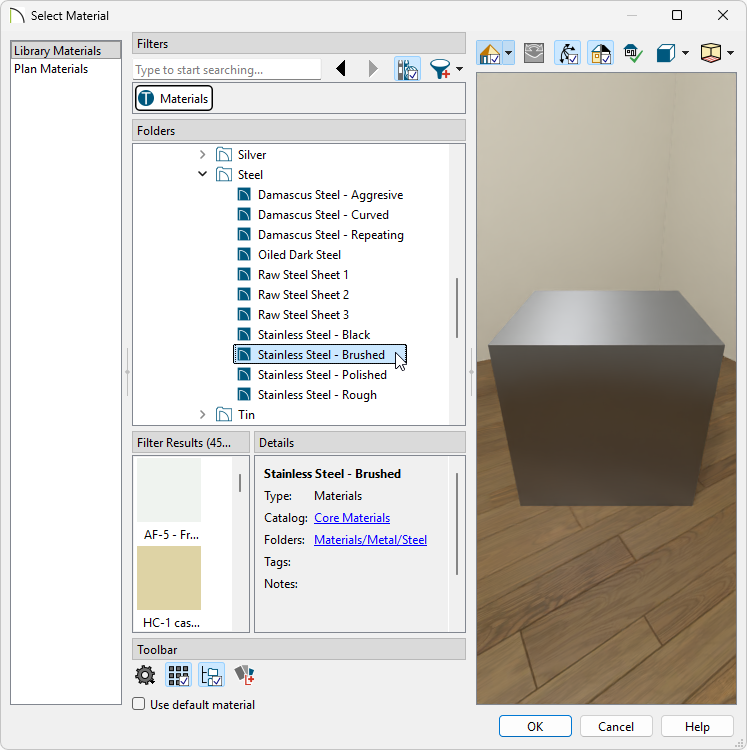 tool still active, click on the elevator components to paint them with the Stainless Steel Brushed material.