QUESTION
My design requires sloping flat trusses. Am I able to model and show these in my design?
ANSWER
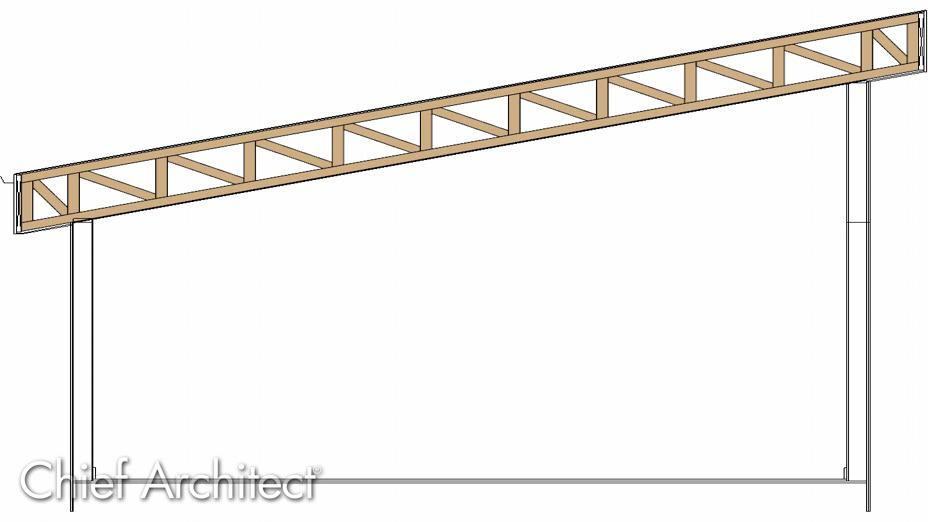
You can model sloping flat trusses by configuring your roof settings, drawing in a manual ceiling plane, and then building your roof trusses. These can then be shown in cross section views, plan views, and 3D camera views.
To build the structure and roof
- Access the file that you would like to create parallel chord roof trusses within.
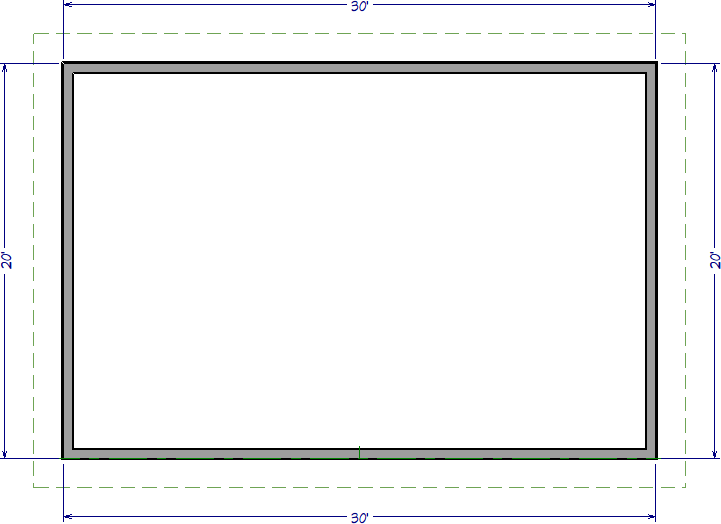
In this example, a simple 20' x 30' rectangular structure is created.
- If you haven't established a shed roof yet, use the Select Objects
 tool to select the two side walls, then use the Open Object
  edit tool.
- On the Roof panel of the Wall Specification dialog, select the Full Gable Wall option, then click OK.
- Select the wall that will act as the high shed side of the shed roof, in this case the top wall, then use the Open Object edit tool.
- On the Roof panel of the Wall Specification dialog, select the High Shed/Gable Wall option, then click OK.
- Navigate to Build> Roof> Build Roof
 to open the Build Roof dialog.
- In the Build Roof dialog:
- On the Roof panel ensure that Auto Rebuild Roofs is checked.
- Change your Framing Method to Trusses.
- Set your Pitch (in 12) to the desired pitch of your shed roof. In this instance we will use a pitch of 3:12.
If you have multiple roofs that will be at different pitches, you can instead set the pitch on the low shed side of the shed roof. Please see the Related Articles for more information on controlling individual roof pitches.
- Set your desired Heel Height. In this example we will use 24".
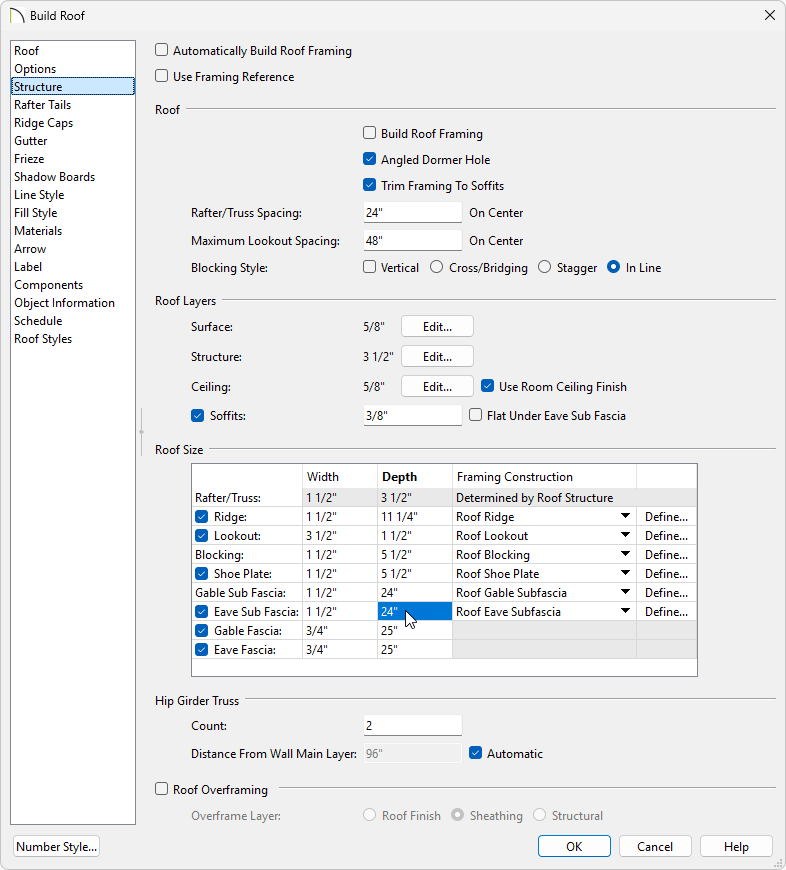
- On the Structure panel, on the Roof Size section, set your Gable Sub Fascia and Eave Sub Fascia to match your Heel Height value we set before. In this example we will set it to 24".
If your Gable Sub Fascia and Eave Sub Fascia are not specified to be large enough you will not get a sloping flat truss. Instead you will get a parallel chord truss with a standard overhang.
- Set your Gable Fascia and Eave Fascia to match your local building requirements. In this example we will use 25".
- Click OK to build the roof plane and create the trusses.
To build the ceiling
- Using the Select Objects tool, click in the room that will have a vaulted ceiling to select it, then click the Open Object edit button.
- On the Structure panel of the Room Specification dialog, uncheck Flat Ceiling Over This Room, then click OK.
- To make it easier to draw ceiling planes, select Tools> Layer Settings> Display Options
 and in the Layer Display Options dialog for the active layer set:
In Home Designer, navigate to Tools> Display Options instead.
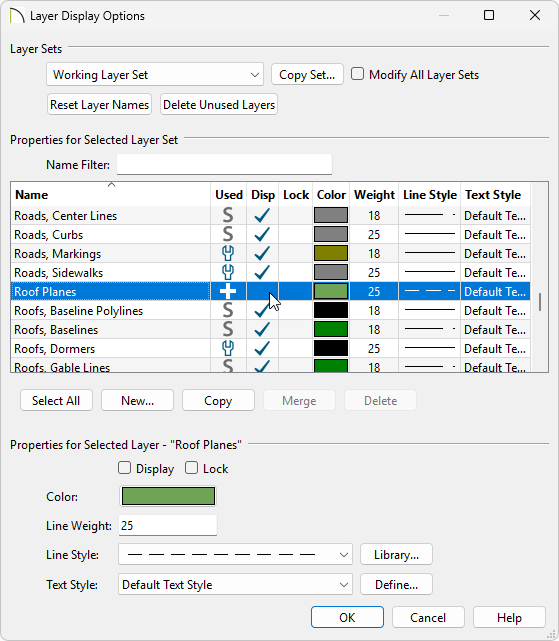
- Scroll down to the "Roof Planes" layer and remove the check in the Disp column or from the Display checkbox.
- Click OK to close the dialog and turn off the display of the roof planes in the plan.
- Select Build> Roof> Ceiling Plane
 from the menu.
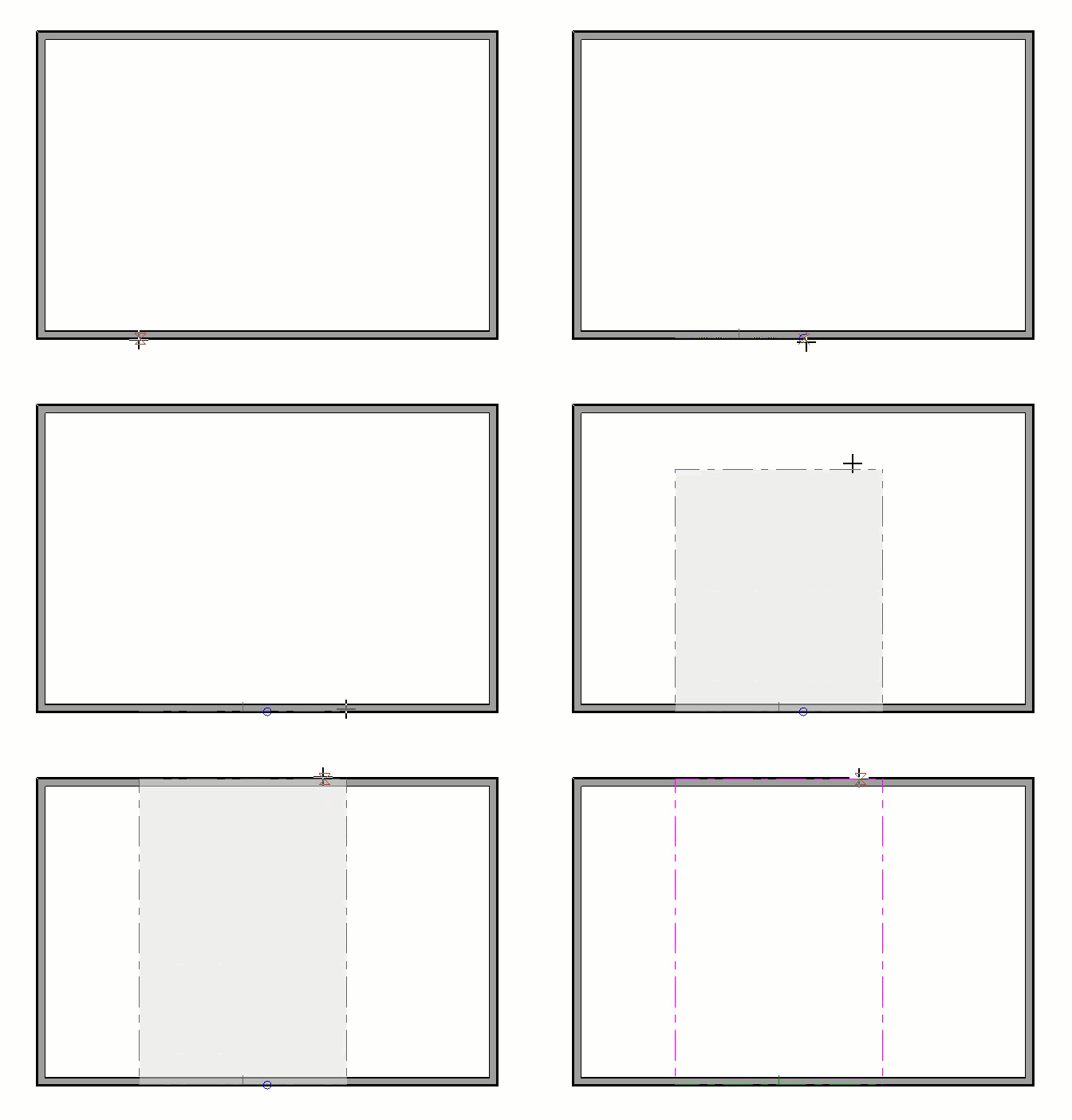
- Click and drag a baseline along the outside of a wall defining the room that will have a vaulted ceiling.
- When the baseline is complete, click once in the room to set the ceiling planes ridge.
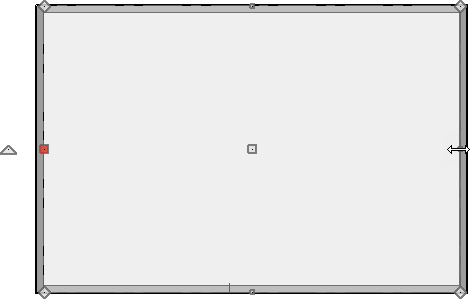
- Click on the ceiling plane to select it, then use the edit handles that display to stretch it across the room to the inside surfaces of the side walls and to the outside of the main layer of the high shed side wall.
- With the ceiling plane still selected, click the Open Object edit button and on the General panel of the Ceiling Plane Specification dialog:
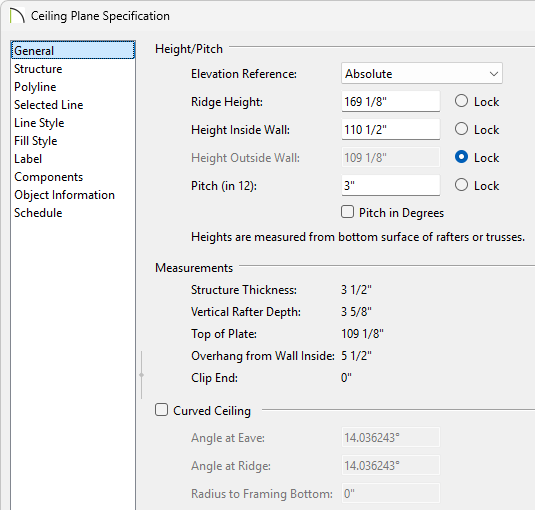
- Specify the Pitch to match the roof that was generated in the section above. If the Pitch field is grayed out, select the Lock radio button next to Height Outside Wall.
In this example, 3" in 12 is used.
- Now lock the Pitch and set the Height Outside Wall value to match the Top of Plate value, if it isn't already.
In this example, a value of 109 1/8" is specified.
- Click OK to close the dialog and apply the change.
With both the ceiling and roof planes in place, you can now create roof trusses.
To create sloping flat trusses automatically*
*Applies to Chief Architect Premier X15, Home Designer Pro 2024, and newer versions.
- Select Build> Framing> Build Framing
 from the menu.
- In the Build Framing dialog that appears, click on the Automatic Framing Defaults button.
In X15 and Home Designer Pro 2024, skip this step and proceed to Step 3.
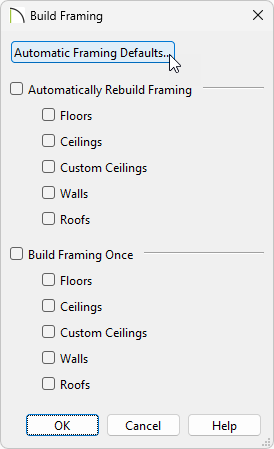
- Access both the Roof and Trusses panels in the dialog that appears, and verify that the settings are set to your liking.
In this example, we changed the Maximum Horizontal Span, which can be accessed by navigating to the Trusses panel and clicking on the Roof Truss Defaults button, for both the Top and Bottom Chord to 30".
In X16, Home Designer Pro 2025, and prior versions, a separate Roof Truss Defaults button did not exist; instead, the settings for all trusses, including the Maximum Horizontal Span, are located directly on the Trusses panel.
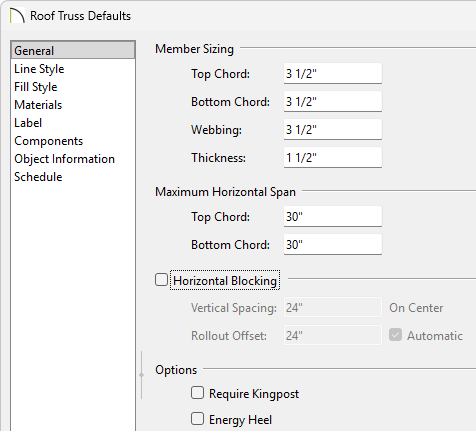
- Once your roof framing settings are setup to your liking, click OK, check the appropriate Roofs box in the Build Framing dialog, then click OK.
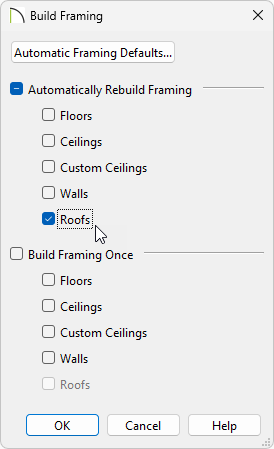
In X15 and Home Designer Pro 2024, check the Build Roof Framing or Automatically Build Roof Framing box located on the Roof panel of the Build Framing dialog instead, then click OK.
Automatic trusses, along with any other automatic framing components, such as blocking and fascia boards, will be generated.
You may also be prompted to choose whether or not to display roof framing layers in the active view. Whichever choice you choose will not affect the generation of the framing components.
The trusses located on each end of the structure will be reduced gable end trusses. If you don't want these types of trusses to be built automatically, open the two gable walls up to specification, select the Roof panel, and uncheck the "Include Automatic End Truss Above" box. Once you regenerate the roof framing, end trusses will no longer be built.
- Create a Perspective Framing Overview
 or create a Back Clipped Cross Section
  view and turn on the Framing, Roof Trusses layer.
For information on displaying framing in a cross section view, please see the Related Articles section.
To create parallel chord roof trusses manually
- Select Build> Framing> Roof Truss
 from the menu.
- Click and drag to draw a roof truss the same direction your roof pitches.
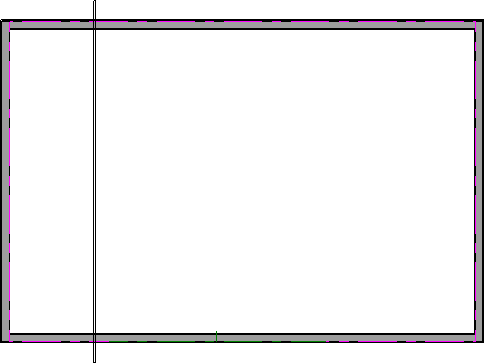
- Click on the truss to select it and move it so that the exterior edge of the truss is aligned with the exterior edge of the framing layer of the wall.
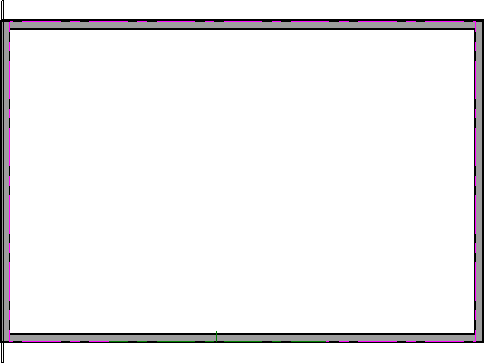
- With the truss in place, select it, then click the Open Object edit tool.
- On the General panel of the Roof Truss Specification dialog that displays, ensure the Maximum Horizontal Span for both the Top and Bottom Chords are set to your liking, then click OK.
In this example, 30" is specified for both.
- With the truss still selected, click the Multiple Copy
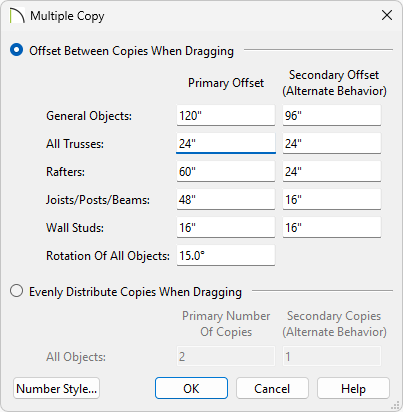
 edit button, then click the Multiple Copy Interval button to open the Multiple Copy dialog. Verify that Offset Between Copies When Dragging is selected and that the Primary Offset specified for All Trusses equals the desired O.C. truss spacing, then click OK.
Multiple Copy is not available in Home Designer; instead, use the Transform/Replicate edit tool. As an example, if you wanted to create 6 copies all separated a certain distance from each other, you would check the Copy box, set the Number of Copies to 6, then check the option for Move and set the X Delta to be 24". Negative values can also be set for each of the Deltas if needed.
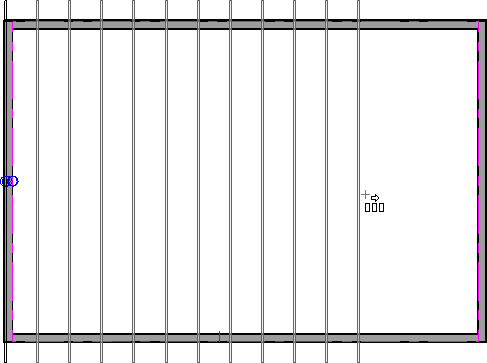
- Hover over the main Move edit handle on the truss until you see the Multiple Copy cursor display, then click and drag across the structure to create copies 24" apart.
- Create a Perspective Framing Overview or create a Back Clipped Cross Section view and turn on the Framing, Roof Trusses layer.
For information on displaying framing in a cross section view please see the Related Articles section.
Now, additional framing components, such as lookouts and fascia boards, can be generated automatically using the Build Framing dialog.
Return to Top
