QUESTION
How do I create a Custom Object Field to report a specific object property or measurement within a schedule?
ANSWER
Custom Object Fields, which allow you to create custom columns in schedules as well as specify the data that goes into those columns for each object, can be created in an object's specification dialog or an object's defaults dialog.
Before a Custom Object Field is created however, you may want to see a list of properties, or name-value pairs (NVP's) associated with that object. This can be done using the Object Properties macro.
Using custom object fields
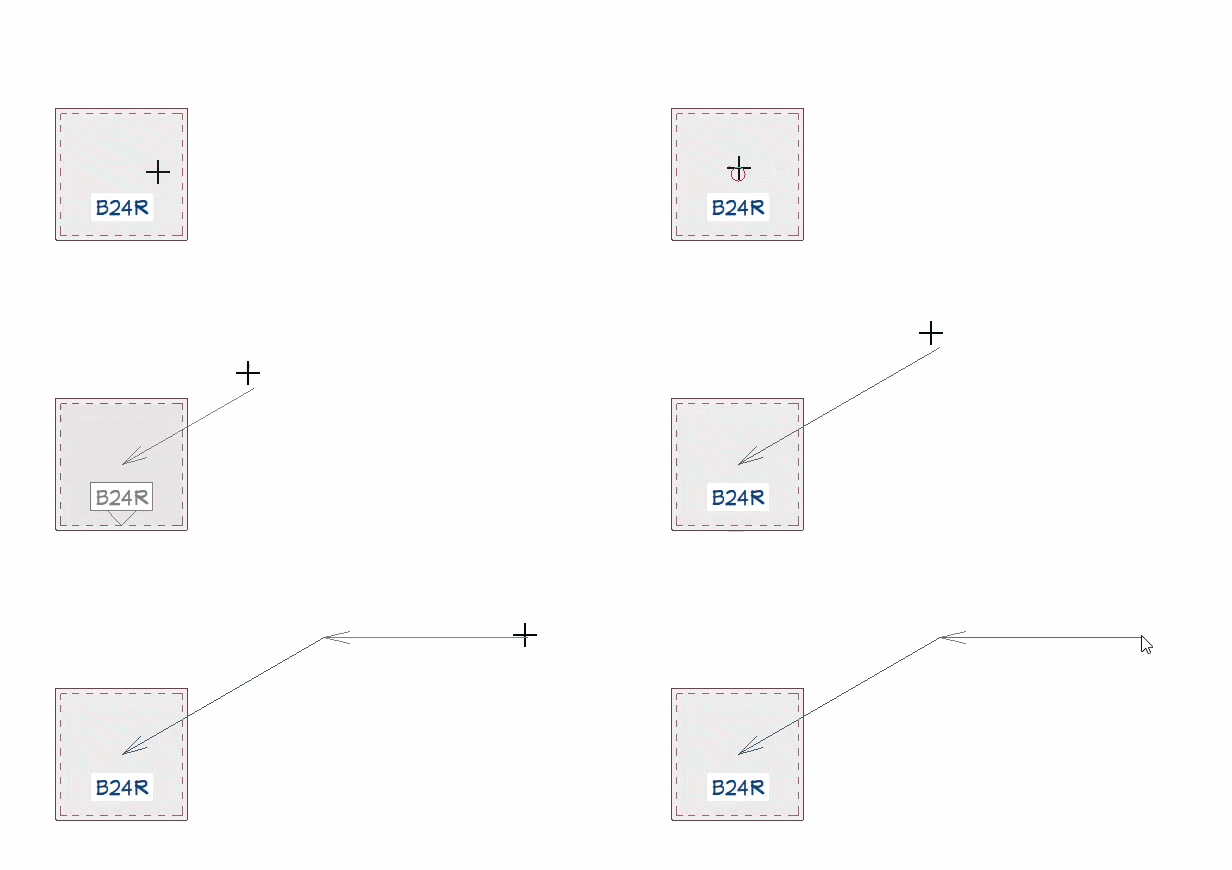
- While you're in your desired project, navigate to CAD> Text> Leader Line
 from the menu, then draw a leaderline starting from the object that you want to view the properties of.
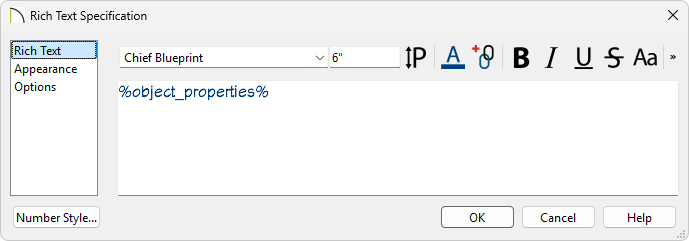
- In the Rich Text Specification dialog that opens next, type
%object_properties% in the input field, then click OK.
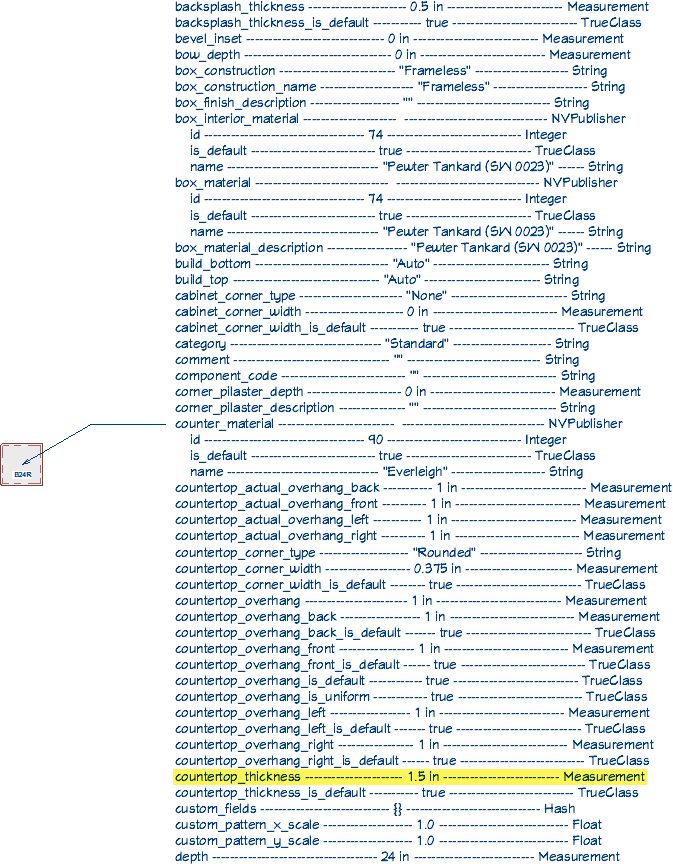
- A large amount of object information will populate in the plan; locate the property or measurement that you want to create a Custom Object Field for and take note of the name-value pair, which is located on the left side.
In this example, we want to report the Countertop Thickness to a schedule, so we have located this measurement and have noted that it uses the countertop_thickness name-value pair.
-
Select
 and Open
  the object that you want to create a Custom Object Field for.
You can also navigate to Edit> Default Settings  , then access the object's defaults dialog for the object you're wanting to create the Custom Object Field for.
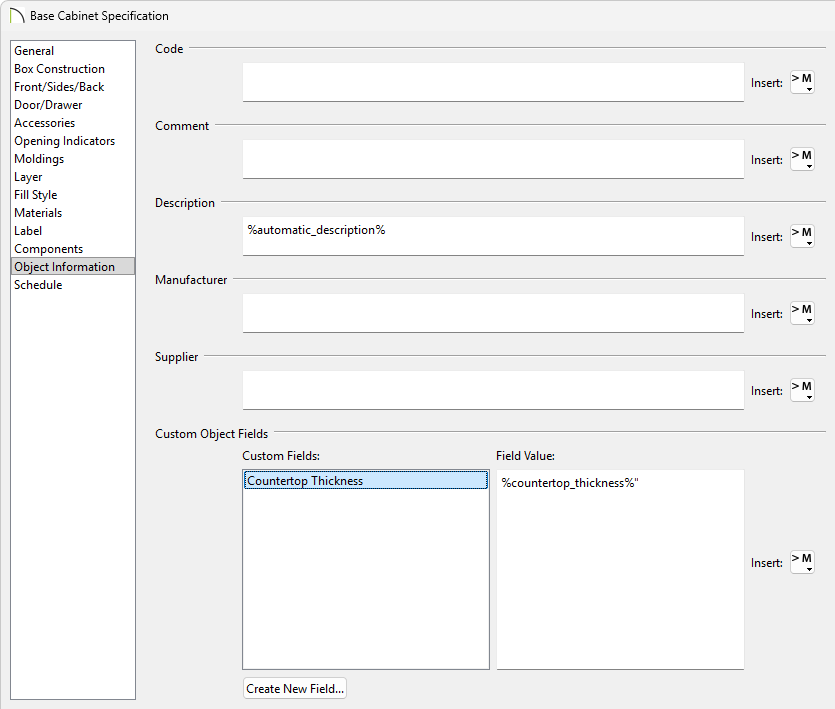
In this example, we have opened a single base cabinet up to specification.
- Access the Object Information panel, then click the Create New Field button under the Custom Object Fields section.
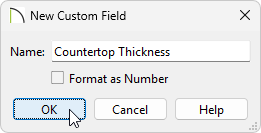
- In the New Custom Field dialog that opens next, specify an appropriate Name for the Custom Field, check the Format as Number box, if applicable, then click OK.
In this example, Countertop Thickness is specified as the Name and Format as Number is unchecked.
- With the field now created, a Field Value can be specified in the object specification or within the object's defaults dialog.
In this example, %countertop_thickness%" is specified. Note that the % symbol is placed at the beginning and end of the initial name-value pair, and an " symbol is placed at the very end of the string.
- Click OK and, if applicable, Done to confirm the changes.
- If a schedule has not already been created, create one by navigating to Tools> Schedules
 from the menu.
-
Select and Open the schedule up to specification.
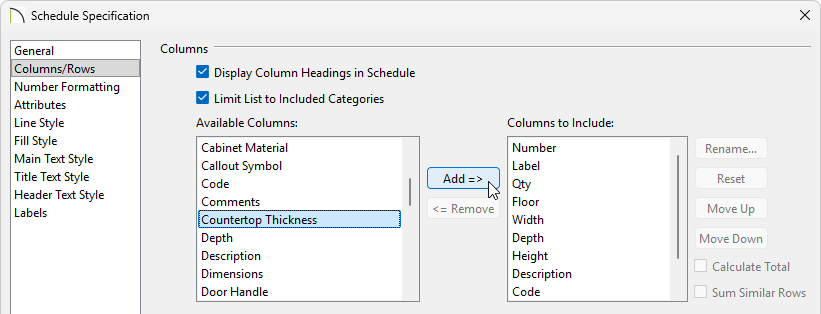
- In the Schedule Specification dialog:
- On the General panel, specify the desired Include Options, then ensure that the Include Categories list includes the object that you created a Custom Object Field for.
In this example, a cabinet schedule was created, so a majority of the cabinet types are already selected for inclusion.
- On the Columns/Rows panel, the Custom Object Field will be listed in the Available Columns; locate this column, then click the Add button to add it to the Columns to Include section.
- Make any other desired changes to the schedule, such as to the order of the Columns to Include list, then click OK.
Notice that the new Custom Object Field now displays as it's own column in the schedule, and it reports the name-value pair associated with the object.

The Field Value of a Custom Object Field can be edited at any time by accessing the object's specification or object's defaults dialog.
To delete or edit Custom Object Fields, access the Default Settings , expand the Schedules category, select Custom Object Fields, then click Edit. Note that Field Values cannot be specified or managed in this dialog.
