How do I enable MCP access and configure it for use with an AI agent?
Introduced in Chief Architect Premier X18 Build 28.2.1.14, a Model Context Protocol (MCP) server is available, enabling integration with a development focused AI agent (e.g. Anthropic Claude Code, Open AI Codex, Google Antigravity, GitHub Copilot from Microsoft) via a local client installation.
Before use, the Chief MCP Server setting within the program's Agentic AI Preference section must be enabled.
Chief Architect's MCP implementation consists of the following:
Please share any comments, suggestions, or feedback concerning the MCP implementation and broader AI topic by joining the ongoing discussion in the following ChiefTalk forum thread: Looking For Feedback: Potential AI Integration in Chief.
The information in this article is not intended to be an endorsement for the products or companies listed, and listing these products and companies is for your information only. We will not provide any support for these products.
 on a Windows system or Chief Architect> Preferences on a Mac.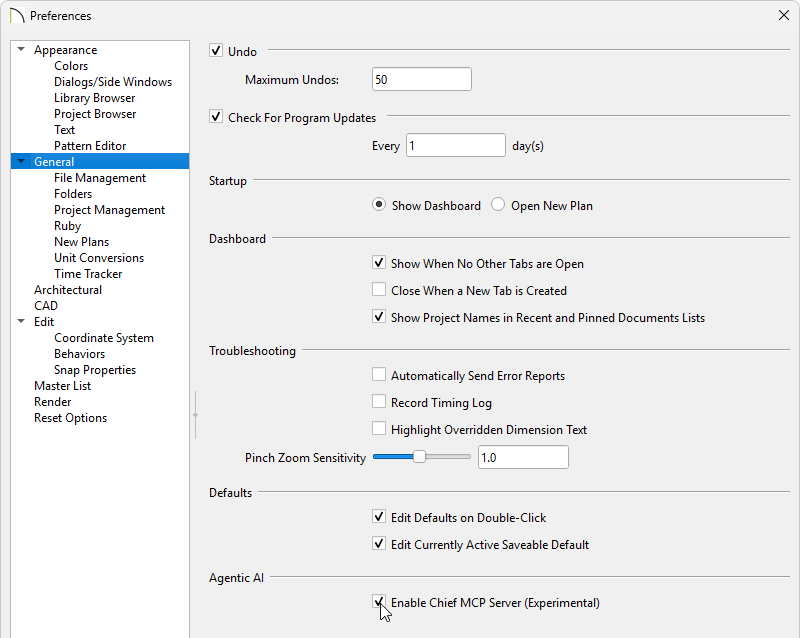
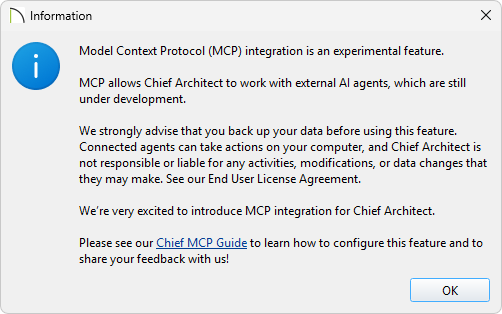
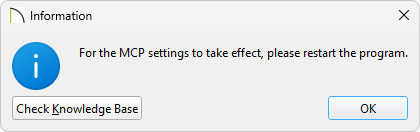
A local MCP server is installed with Chief Architect Premier X18. The default installation location is C:\Program Files\Chief Architect\Chief Architect Premier X18\ on Windows or Applications/Chief Architect Premier X18/ on Mac. Locate the MCP server and configure it for use.Note: For any additional configuration or environment-specific setup, please consult the official documentation provided by your specific AI agent client.
Purge all Chief Architect MCP information.
Search and locate the camcp package associated with Chief Architect Premier X18. It consists of a local, stdio-based Python MCP server. Once located, configure it for use.
