The video shows how to create custom tile materials by importing an image, using the Capture Tool to grab a clean sample, and adjusting scale and texture settings in the Material Builder for realistic 3D results.
Default Settings Summary
Setting Preferences
Modifying Cabinets
Library Browser Overview
Printing & Saving a PDF
Creating Custom Tile Materials
Featured Videos
286 - Using 3D Cladding
5553 - What's New in X18 - Overview
6120 - File Management Overview
11082 - As-Built Overview
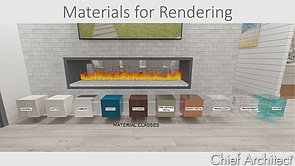
1971 - Materials for Rendering
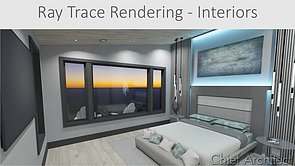
1977 - Interior Ray Tracing
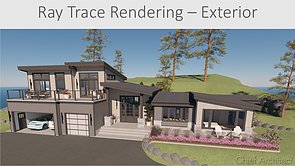
1978 - Exterior Ray Tracing
10145 - Creating Custom Tile Materials
1554 - Applying Backdrops
280 - Adding Text to 3d Views
2439 - Appliances and Fixtures
281 - Creating Sun Study Animations
Materials: Patterns & Textures
259 - Creating and Editing Custom Patterns
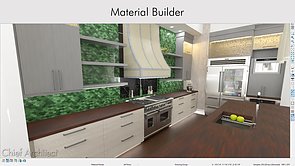
285 - Using the Material Builder
36 - Applying Materials, Colors, and Textures
63 - Changing Materials on Multiple Components at One Time
5308 - Plan Materials
37 - Color Chooser
5234 - Material Region Tools
10119 - Using the Adjust Material Definition Tool
40 - Wall Coverings
10210 - Material Properties: How to Import, Set the Pattern & Visualize in 3D
83 - Advanced Materials