QUESTION
I have customized my Default Sets, Default Settings, Layer Sets, Note Types, Saved Plan Views, and/or Wall Types in one of my files, and I would like to use these same settings in another file. How do I take these configurations and import them into another file?
ANSWER
Generally, you should set up your template files accordingly so that they already have these various settings, but there are a number of reasons you may need to import these into a different file. For instructions on setting up template files, see the Related Articles section at the bottom of this article.
In X17 and newer versions, the Import Settings From Plan/Layout tool is used to transfer these settings between files.
In X16 and prior versions, the various Export and Import tools are used to transfer your various settings between files.
Either method will allow you to pick and choose the various settings you need.
This article will cover the following:
To import settings in X17 and newer
- Access the plan/layout file that you want to import settings into.
- Go to File> Import> Import Settings From Plan/Layout
 to open the Select Plan dialog.
If you're using Traditional File Management, a Windows File Explorer or Mac Finder Window will display instead.
- Find and select the plan/layout you would like to import your settings from, then click Select or Open.
- The Import Settings From Plan/Layout dialog will display where you can choose the various settings you would like to import; you can select an entire category or you can expand each category to pick and choose specific components.
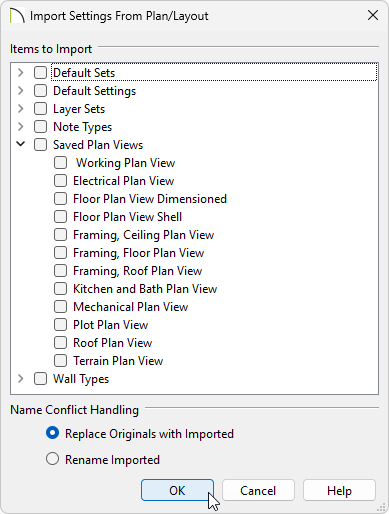
- In the Name Conflict Handling section:
- Choose Replace Originals with Imported to overwrite and replace any existing settings with the same name.
- Choose Rename Imported to not overwrite the existing settings with the same name, and instead rename the newly imported settings with the same name.
More information about these options can be found by clicking the Help button near the bottom of the dialog.
- Click OK to begin the import process.
Once completed, an Information dialog will display that states what was successfully imported.
To export settings in X16 and prior
- Access the plan/layout you would like to export your settings from.
- Select File> Export:
- Select Export Layer Sets
 to export a .layers file that contains your layer data.
- Select Export Default Sets
 to export a .cadefs file that contains your default sets data.
- Select Export Wall Definitions
 to export a .dat file that contains your various wall types.
- Select Export Note Types
 to export a .json file that contains your various note types.
- After selecting one of the export options:
- Browse to a location on your computer to save your exported settings file to, such as an easy to find place like your Desktop.
- Type a short, descriptive File name.
When renaming the file be sure to remove any asterisks (*) from the file name, as this will prevent you from being able to export.
- Click Save to close the dialog and complete the export.
To import settings in X16 and prior
- Access the plan/layout you'd like to import these settings into.
- To import Layer Sets, navigate to File> Import> Import Layer Sets
 .
.
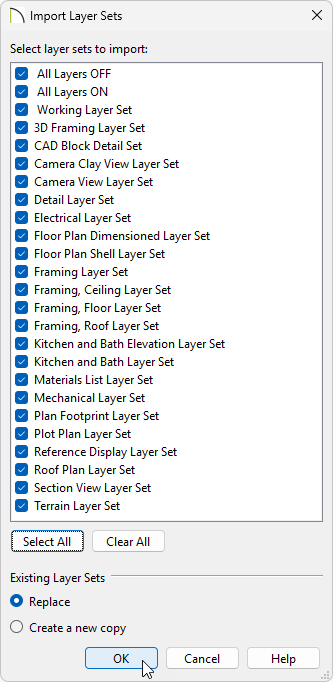
- Browse to the location on your computer where you saved your .layers file, created above.
- Select the file and click Open to open the Import Layer Sets dialog.
- In the Import Layer Sets dialog, select the layer sets you'd like to import.
- In the Existing Layer Sets section, choose Replace or Create a new copy to determine how preexisting layer sets with the same name will be handled.
- Click OK.
- To import Default Sets, navigate to File> Import> Import Default Sets
 .
.
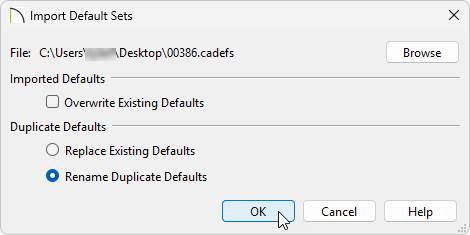
- Browse to the location on your computer where you saved your .cadefs file, created above.
- Select the file and click Open to open the Import Default Sets dialog.
- Check the Overwrite Existing Defaults checkbox if you'd like to delete all Saved Defaults for Text, Rich Text, Callouts, Markers, Arrows, and Dimensions in the file and replace them with imported Saved Defaults. When left unchecked, which it is by default, existing defaults are retained along with those that are imported.
- In the Duplicate Defaults section, choose Replace Existing Defaults or Rename Duplicate Defaults to determine how preexisting default sets with the same name will be handled.
- Click OK.
- To import Wall Definitions, navigate to File> Import> Import Wall Definitions (DAT)
 .
.
- Browse to the location on your computer where you saved your .dat file, created above.
- Select the file and click Open to begin the import.
- In the Information dialog that appears, choose Yes or No when asked if you'd like to replace existing wall definitions with the same name.
- To import Note Types, navigate to File> Import> Import Note Types
 .
.
- Browse to the location on your computer where you saved your .json file, created above.
- Select the file and click Open to begin the import.
- To import Saved Plan Views, navigate to File> Import> Import Saved Plan Views
 .
.
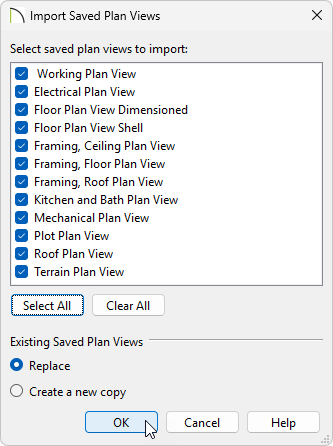
- Browse and find the .plan you'd like to import the saved plan views from.
- Select the .plan and click Open to open the Import Saved Plan Views dialog.
- In the Import Saved Plan Views dialog, select the saved plan views you'd like to import.
- In the Existing Saved Plan Views section, choose Replace or Create a new copy to determine how preexisting saved plan views with the same name will be handled.
- Click OK.
- To import Default Settings, navigate to File> Import> Import Default Settings
 .
.
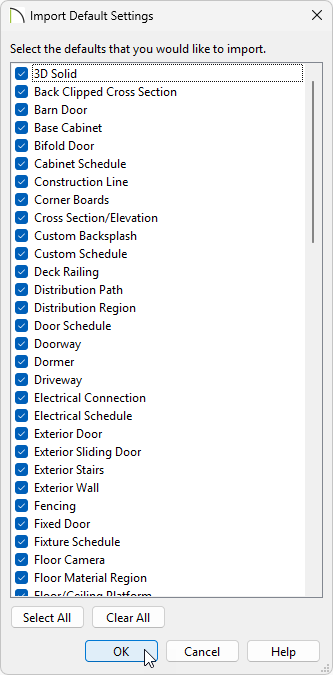
- Browse and find the .plan you'd like to import the default settings from.
- Select the .plan and click Open to open the Import Default Settings dialog.
- In the Import Default Settings dialog, select the default settings you'd like to import.
- Click OK.
