How can I make my fireplace appear to be glowing and casting light around my room?
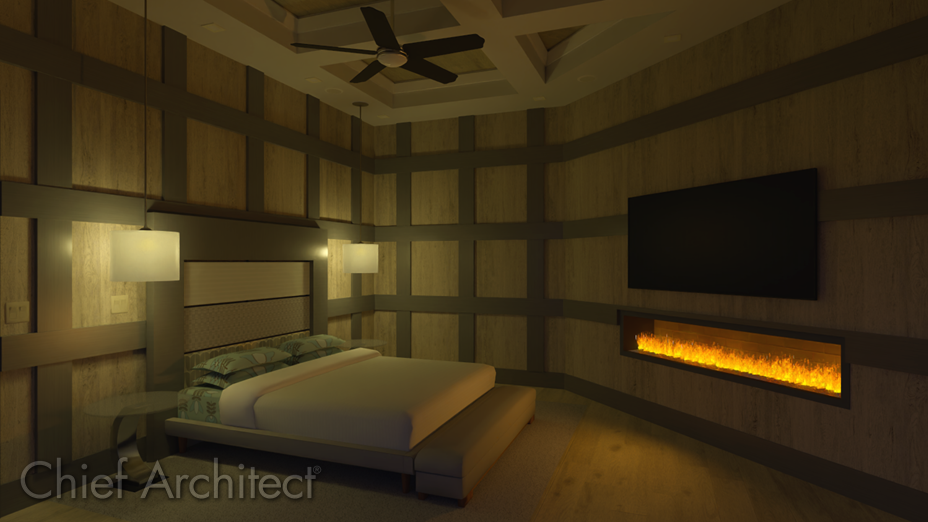
The fire material associated with a fireplace can be changed and additional lights can be added in the area to provide a realistic fireplace effect in 3D camera views. Additionally, a material's emissive property can modified to adjust the brightness of the material separate from the other light sources in the design.
 and navigate to Core Catalogs> Architectural> Fireplaces to locate an appropriate fireplace to place in your design.
 it, then click the Explode Architectural Block
  edit tool.
  .
.  , then left-click and drag in front of the fireplace to draw a light facing away from the fireplace.
  tool, select the newly placed light source, then click on the Open Object edit tool.
Note: If you have trouble selecting the light, try dragging a selection marquee encompassing the light. You can also navigate to 3D> Lighting> Adjust Lights, select the recently added light in the list, then click the Adjust Light(s) button.

 , then click and drag out a camera view that faces your fireplace.
 to see the view using realistic lighting.
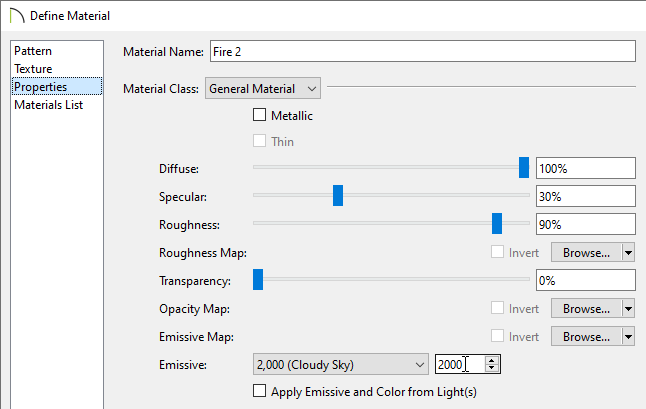
 , click on the flame material, then adjust the Emissive setting located on the Properties panel of the Define Material dialog. To learn more about this setting, please refer to your program's documentation.
 Note: If the flame material is behind a glass panel or other obstacle, you can select the Delete Surfaces tool, then click on the glass panel to temporarily hide that component to gain access to the fire material.