I'm building an unfinished structure with exposed studs. How do I create these walls that will show the exposed wall framing?

To create a wall with exposed studs you must create a custom wall type with no interior wall layers, generate wall framing, and then turn on the display of the "Framing, Wall" and "Framing, Headers" layer(s) while in a camera view.
 .
.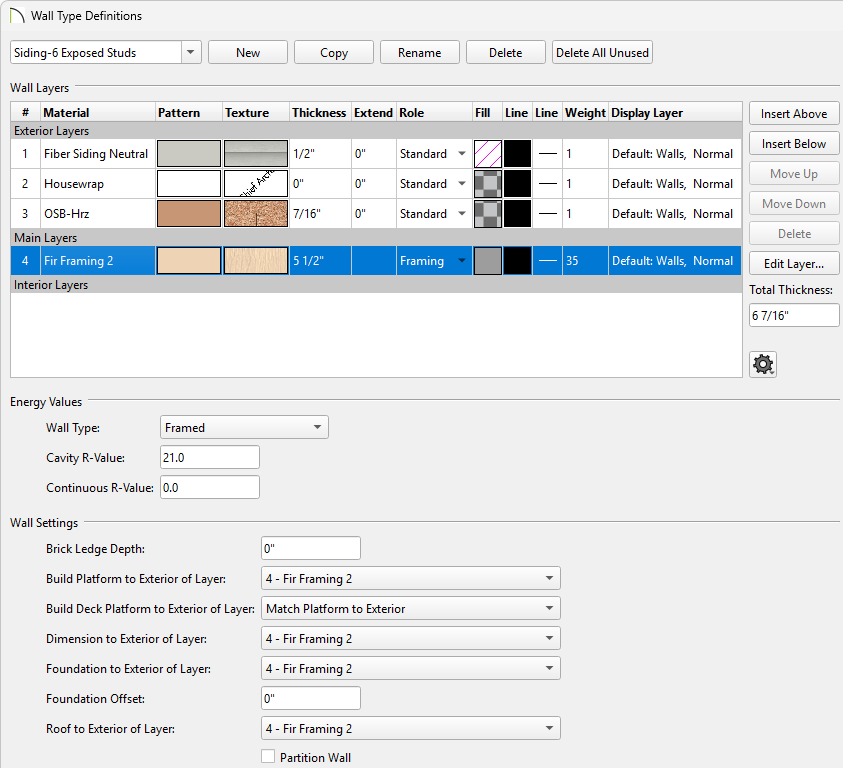
For more information on customizing and defining wall types, along with the various settings located in this dialog, please see the "Defining a New Wall Type" resource in the Related Articles section below.
 tool, click on the wall or walls that you want to use this wall type for, then click on the Open Object
  edit tool.
For more information on selecting multiple objects at once, please see the "Group Selecting Objects" resource in the Related Articles section below.
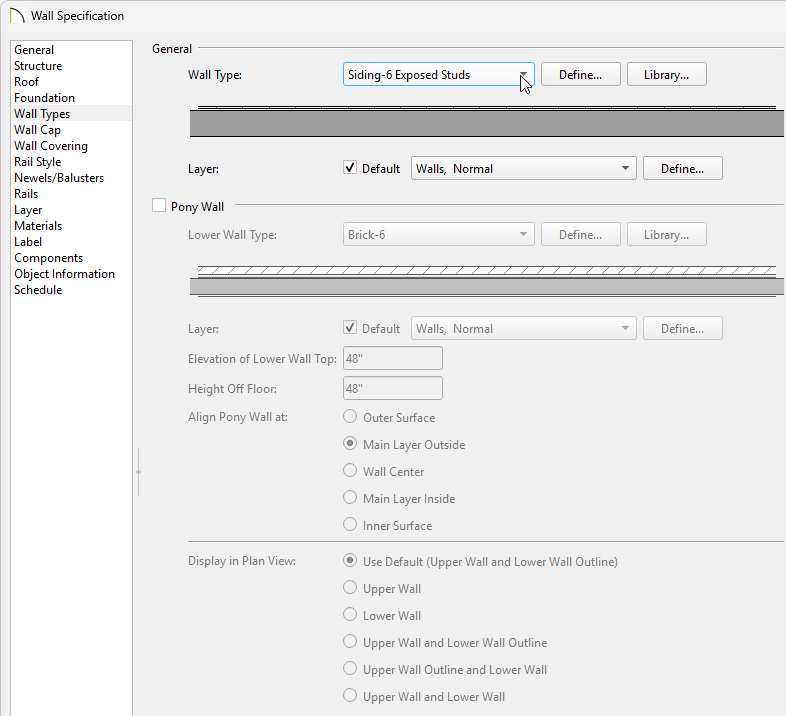
 view looking towards one of the walls utilizing the custom wall type.
 while the camera view is active.
Note: You may receive a message stating the framing layers are not displayed in the current view, and it will ask if you would like to turn on their display. Click Yes.
If you don't receive a message, the appropriate framing layers may already be displayed. This can be verified by accessing the Layer Display Options dialog or the Active Layer Display Options side window while the camera view is active.

 to update the view and see the results.
If this wall type will be utilized in future projects, consider selecting a wall that is utilizing the custom wall type, then clicking the Add to Library edit tool. The wall will be added to the User Catalog folder within the Library Browser and can be selected and used to create new walls in your plans, similar to how the Wall tools work in the program.
