I received a notification that the purchase and access of catalogs for discontinued versions is being retired. Can you supply further details on what this means and how I might be affected?
Chief Architect will discontinue catalog sales for Chief Architect Premier X16, Home Designer 2025, and prior versions on November 30th, 2026. Downloads of bonus and manufacturer content will permanently end on December 28th, 2026. Core libraries will be unaffected and can still be downloaded after this date.
To protect future access to these catalogs, please take the following steps:
For help downloading content, refer to Obtaining and Updating Library Content if you're using Chief Architect or Downloading and Updating Library Content if you're using Home Designer.
For instructions on backing up bonus and manufacturer catalogs, please see the following sections:
By default, bonus and manufacturer catalogs install to ProgramData on Windows and Application Support on macOS. These are hidden file locations and may require you to use the "Run" utility on Windows or the "Go to Folder" function in macOS to access.
If you moved your program's catalogs to a custom file location using the "System Library Database Folder" setting within the program's Preferences, you will want to instead reference this custom location to backup these files.
Before following the steps below, close out of your Chief Architect/Home Designer software.
 and the letter R on your keyboard at the same time to open the Run dialog. Type
 %programdata% and then click OK to open the Program Data folder.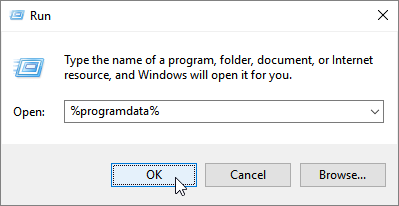
/Library/Application Support/ then click Return.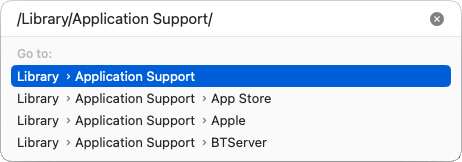
Do NOT copy or backup the Program_Data folder or the dont_change.dat file. They contain unique, encrypted registration information and if you try to use a copied and pasted version of either, your license registration will no longer be recognized by our registration server.
To restore these files, repeat these steps in reverse, copying from your backup location to the original folder. For additional information about backing up and restoring content, please see the Related Articles section.
Note: If you cannot remember your password, click on "Forgot My Password" to reset your password.
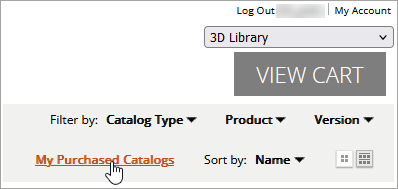
 icon or the Download
  button, then click on the applicable Chief Architect/Home Designer version.
To restore this catalog, navigate to Library> Import Library within the Chief Architect/Home Designer program, then select the file to begin the import process. For more information, please see the Related Articles section.
