What are layout template pages, and how can I make use of them to improve my productivity?
In Chief Architect, you can use layout page templates, which allow you to create one or more title blocks and borders and then assign them to the layout pages of your choice.
Unlike regular pages with content, layout page templates do not print as part of a print range.
In this example, two page templates will be created: one for the cover sheet and one for the sheets that follow it.
This article will cover the following:
 if it isn't already open, navigate to the Plan and Layout Templates folder within the Project Browser, and open the layout template you'd like to modify.
Note: If you do not see the "Plan and Layout Templates" in your Project Browser, be sure that "Show Default Documents" is enabled at the bottom of the Project Browser.
If a custom layout template needs to be created, please see the "Creating and Using Layout Templates" resource in the Related Articles section below before proceeding.
 or File> Templates> New Layout From Template
  to select the desired layout template to be used. side window:
Note: On a Mac, hold down the Control key while clicking to initiate a right-click command. More information about right-click commands on Apple input devices can be found in the following Apple resource: Right-click on Mac.


Using the same steps, you can create additional page templates for every discipline and sheet type that you typically use in your own layout template file. If you want to create a page template out of a page that is not displayed in the Project Browser, select Tools> Layout> Change Layout Page, enter the page number you wish to make a page template and click OK. Next, select Tools> Layout> Edit Page Information  and repeat the steps outlined above.
Once multiple page templates have been created, they can be assigned to non-template pages: either blank or with content. You can wait and do this when you actually send views to layout for a project, or you can save time and set aside pages for specific purposes beforehand.
Here, a fairly typical variation of the US National CAD Standard page numbering convention is used.
.
 to go to Page 3..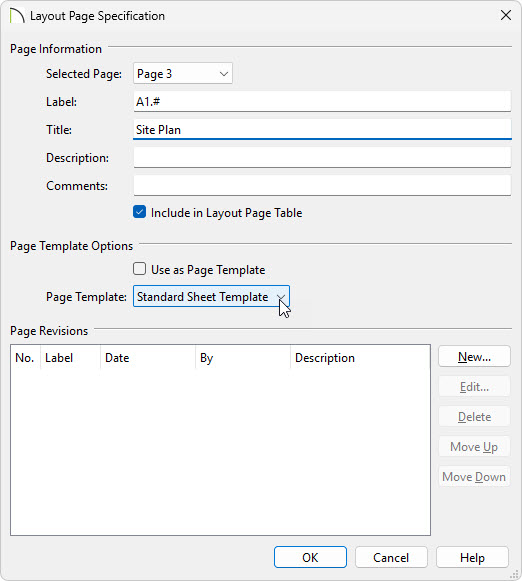
Note: If you type a pound sign # in the Label field, the characters before it will be treated as a numbering prefix, and the # will be replaced by the current page number on the layout sheet.


In your own layout template file, you can assign sheet numbers that you typically use in advance and use the numbering convention of your choice.
If you need to add additional disciplines, types, and/or pages, they can be easily inserted at any time: either in a specific project or in your layout template file.
 to add a page before the current page. The current page number as shown in the Change Layout Page button will increase by one but the page number defined by its Label will not change.
 to add a page after the current page. The current page will not be affected but any pages that follow it will have their page numbers increase by one.
.
to add a page after the current page. The current page will not be affected but any pages that follow it will have their page numbers increase by one.
.Once your page templates have been defined as such, you can create a border and title block for each that matches how it will be used
