Is there a way to use my bluetooth laser measuring device with my Chief Architect desktop application so I can take measurements of an existing job site?
A number of laser measuring devices have bluetooth capabilities, which may allow you to interface with a computer that supports bluetooth connectivity.
Although other devices may connect and work with Chief Architect's desktop applications, only the Leica DISTO X1, along with the Leica DISTO transfer software, have been verified for compatibility.
The Leica DISTO transfer software is not compatible with macOS. However, not all bluetooth laser measuring devices require this software to function with desktop applications.
Note: If you have a supported Apple device, consider using a bluetooth laser measuring device in unison with Chief Archiect's Mobile As-Built application to capture measurements of an existing space. Please see our ChiefBlog article on the topic to learn more.
Bear in mind that As-Built files can only be imported into Chief Architect Premier; Home Designer does not support this feature.
Note: If you have trouble pairing your bluetooth laser measuring device to your computer or connecting the device to the DISTO transfer software, refer to your device's documentation or contact Leica Support.
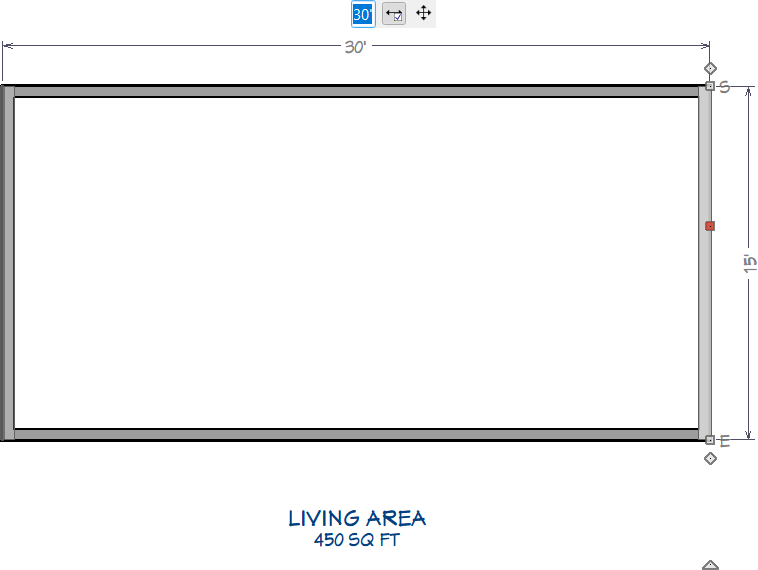
Note: If you notice that the unit of measurement (", ') is not following the measurement value, enter this in using your keyboard, or make a setup modification within the Leica DISTO transfer software, then press Enter.
